
LinkedIn Connections API and Export: Get Your Connections Manually or via API (2026)
Exporting your LinkedIn connections gets your network out of LinkedIn and into a spreadsheet, a CRM, or your own product. There are two honest ways to do it, and they answer different needs. The manual way – LinkedIn's own data export – hands you a one-time CSV in a few clicks, and it is the right answer if you just want the file. If you need your connections kept up to date in a CRM or product, there is no one-click tool for that; you pull them as JSON through an API on your own schedule. This guide covers both: the exact current steps to download the file, what fields you actually get (email is included only if the connection shared it), and how to build a continuous sync when a one-time export is not enough.
The short version. The manual way is LinkedIn's Data Export: Me → Settings & Privacy → Data privacy → Get a copy of your data → "Download larger data archive, including connections…" → Request archive, then download the
Connections.csvfrom the email. You get a one-time snapshot of your 1st-degree connections, with an email address only for those who chose to share it. That is the right answer for a one-time download. If you need your connections kept in sync – upserted into a CRM or product on a schedule – there is no built-in export for that; you pull them as JSON through an account-based API like Linked API and update your system yourself.
How to export your LinkedIn connections (step by step)
Here is the route LinkedIn currently documents:
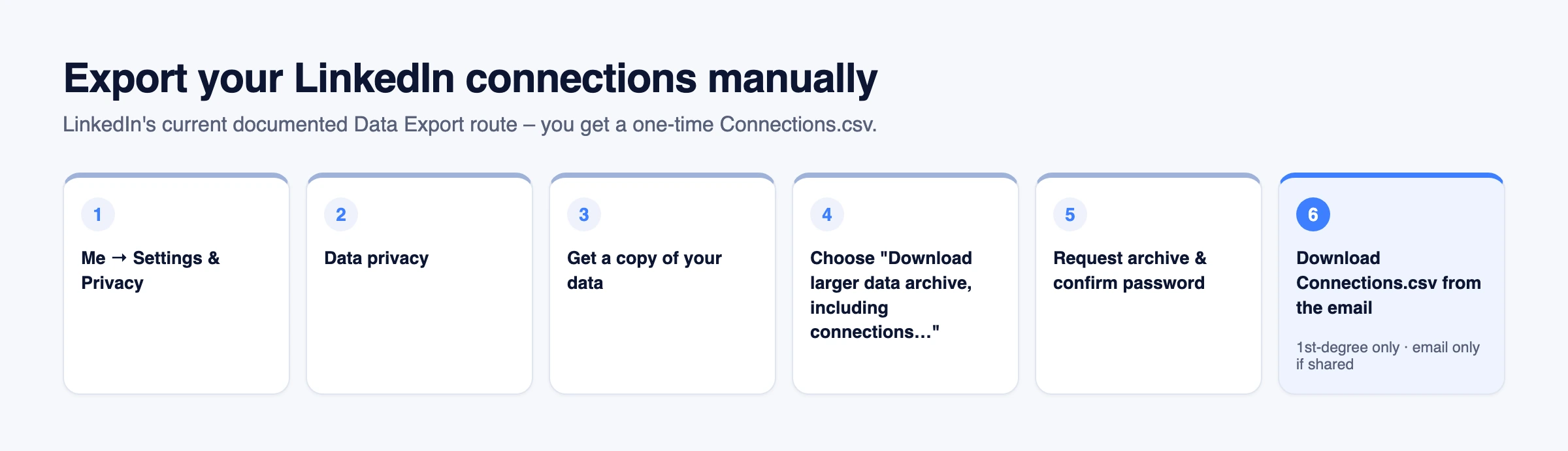
- Click Me (your photo, top right) → Settings & Privacy.
- Open Data privacy.
- Click Get a copy of your data.
- Choose "Download larger data archive, including connections, verifications, contacts, account history, and information we infer about you based on your profile and activity."
- Click Request archive and confirm your password.
- LinkedIn emails you when the archive is ready. Download it and open
Connections.csv.
Two things to know before you start. You can only export your 1st-degree connections – LinkedIn notes you "currently can't export a list of your contacts that aren't 1st-degree connections." And if your account still shows a granular "Connections" option, that works too; the larger-archive option above is the route LinkedIn currently documents.
What you get in the export (and what you don't)
The Connections.csv gives you one row per 1st-degree connection, typically with these columns:
- First name and last name
- LinkedIn profile URL
- Company – as of the time you export
- Position – job title
- Connected on – the date you connected, in MM/DD/YYYY format
- Email address – but only for connections who allowed it, so many rows have none
What you will not get: anyone beyond your 1st degree, a personal email for every connection, or any ongoing updates. The file is a snapshot as of the moment you export it, and the only way to refresh it manually is to export again. If you need it to stay current, use the API below.
Is there a LinkedIn connections API?
Not a self-serve one. LinkedIn's official Connections API exists, but it is restricted to LinkedIn-approved developers with permissions such as r_1st_connections, so for most teams it is simply not available. The route that is open to everyone is account-based: Linked API's retrieveConnections returns your 1st-degree connections as structured JSON through a dedicated cloud browser on your own account, which is what the continuous sync below is built on.
How to export your connections programmatically (build a continuous sync)
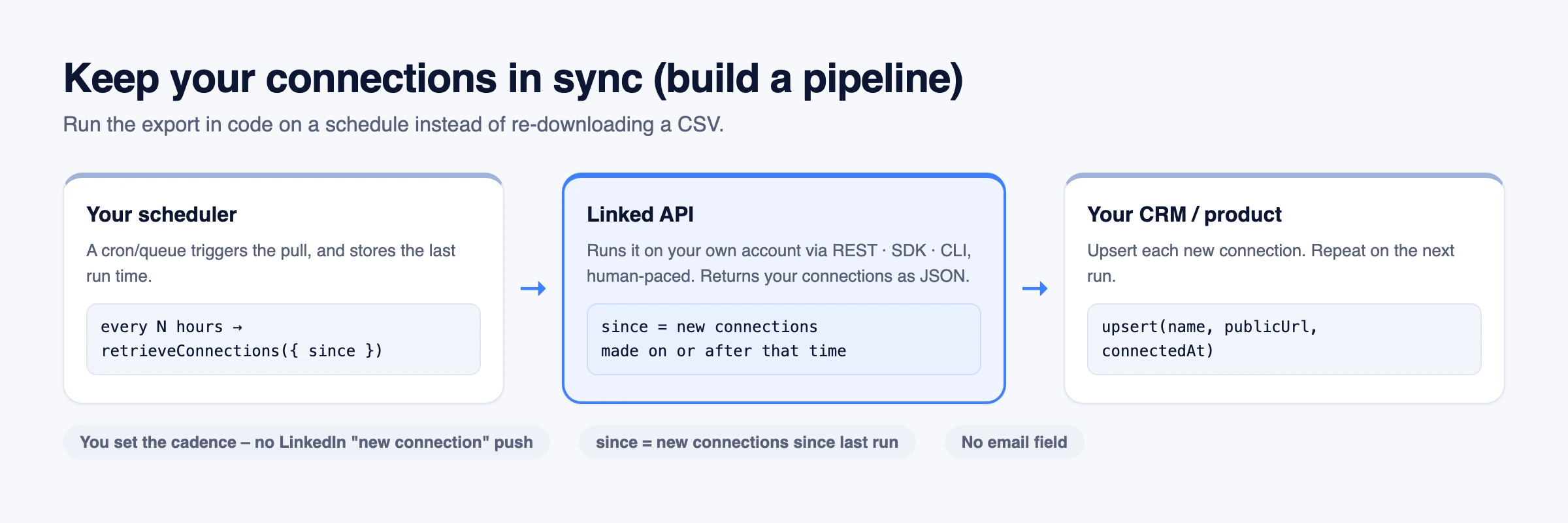
The manual export is a snapshot. If you want your connections to stay current in a CRM or product, run the export in code on a schedule instead. Linked API's retrieveConnections returns your connections as structured JSON through your own account, and its since parameter returns only connections you made on or after a timestamp – so each scheduled run picks up the new connections since the last one. Reach it through the REST API, the Node and Python SDKs, or the shell CLI; the same engine is available to an AI agent through the MCP server, the AI-agent-friendly CLI, or ready-made skills.
import LinkedApi from '@linkedapi/node';

const linkedapi = new LinkedApi({
  linkedApiToken: process.env.LINKED_API_TOKEN,
  identificationToken: process.env.IDENTIFICATION_TOKEN,
});

// Run this on a cron; persist lastRun (ISO date) between runs
const lastRun = process.env.LAST_RUN_ISO;

const workflow = await linkedapi.retrieveConnections.execute({ since: lastRun, limit: 500 });
const { data: connections } = await linkedapi.retrieveConnections.result(workflow.workflowId);

for (const c of connections ?? []) {
  // Upsert each new connection into your CRM
  console.log(c.name, '-', c.publicUrl, '-', c.connectedAt);
}Run that on a schedule, persist the last run time, and upsert each new connection into your CRM. Two honest limits: since returns newly made connections, not a full change-feed – it will not report profile edits or connections that were removed, so treat it as an append-and-update sync – and, like the manual export, the API returns no personal email addresses. It runs on your own account, bounded by your account's daily limits. Grab your tokens from the installation guide, and see retrieving connections and managing existing connections for the full contract.
Today you poll for the workflow result, as shown above. Webhook delivery is rolling out shortly – a workflow.completed event sent to your own endpoint, so you can receive the result without polling. We will update this guide when it lands; until then, see executing workflows for the result model.
Manual export vs API sync: which do you need?
| Manual Data Export | Account-based API (retrieveConnections) | |
|---|---|---|
| Output | One-time CSV | Structured JSON on demand |
| Freshness | Snapshot when you export | On demand / scheduled polling; since returns connections made on or after a timestamp |
| Keep a CRM updated | Re-download by hand | Scheduled sync you build |
| Emails | Only if the connection shared it | No email field |
| Setup | A few clicks | API tokens + code |
| Best for | A one-time download | Continuous sync into a product or CRM |
If you need the file once, export it. If you need your network to stay current inside a system, sync it with the API.
Frequently Asked Questions (FAQ)
Use LinkedIn's Data Export: Me → Settings & Privacy → Data privacy → Get a copy of your data → "Download larger data archive, including connections…" → Request archive, then download Connections.csv from the email LinkedIn sends. It is a one-time snapshot of your 1st-degree connections.
Only partly. LinkedIn includes an email address only for connections who allowed their connections to see or download it, so many rows have none. The API route returns no personal emails at all. If email coverage matters, do not count on having one for your whole list.
It lives under Settings & Privacy → Data privacy → Get a copy of your data, via the "Download larger data archive, including connections…" option. That is LinkedIn's currently documented route; if a granular "Connections" checkbox appears in your account, that works too.
No. LinkedIn states you currently can't export a list of contacts that aren't 1st-degree connections. The export covers your direct connections only.
The Data Export archive already contains a Connections.csv – open it directly in Excel, Google Sheets, or any tool that reads CSV. There is no separate "export to Excel" step.
Yes, with an API. Schedule retrieveConnections({ since }) on a cron via the API, SDKs, or CLI, and upsert new connections into your CRM. You set the cadence, because there is no "new connection" push event – LinkedIn does not notify third parties when your network changes. Webhook delivery of the result is rolling out shortly, and we will update this guide when it is available.
LinkedIn does not offer a self-serve, general-access API for exporting your connections. A restricted Connections API exists for LinkedIn-approved developers (with permissions like r_1st_connections), but most teams cannot use it. For product or CRM sync, an account-based API like Linked API retrieves your connections as JSON through your own account – see the retrieve-connections docs.
Need your connections to stay current in your product, not just a CSV you re-download? Start with Linked API to pull them as JSON on your own schedule, or see how the account-based model works across LinkedIn data in our LinkedIn scraper API guide.