
LinkedIn Pending Invitations: When They Expire and What Withdrawing Does
Every LinkedIn account quietly accumulates two queues: connection requests you sent that nobody answered, and invitations other people sent you. LinkedIn does not surface either one prominently, so most people never learn how to see pending connections on LinkedIn at all – and the stale pile grows. This guide covers where both queues live, how to withdraw what has gone stale, and the facts LinkedIn actually documents about what happens next: who gets notified, when invitations expire, and how soon you can try again.
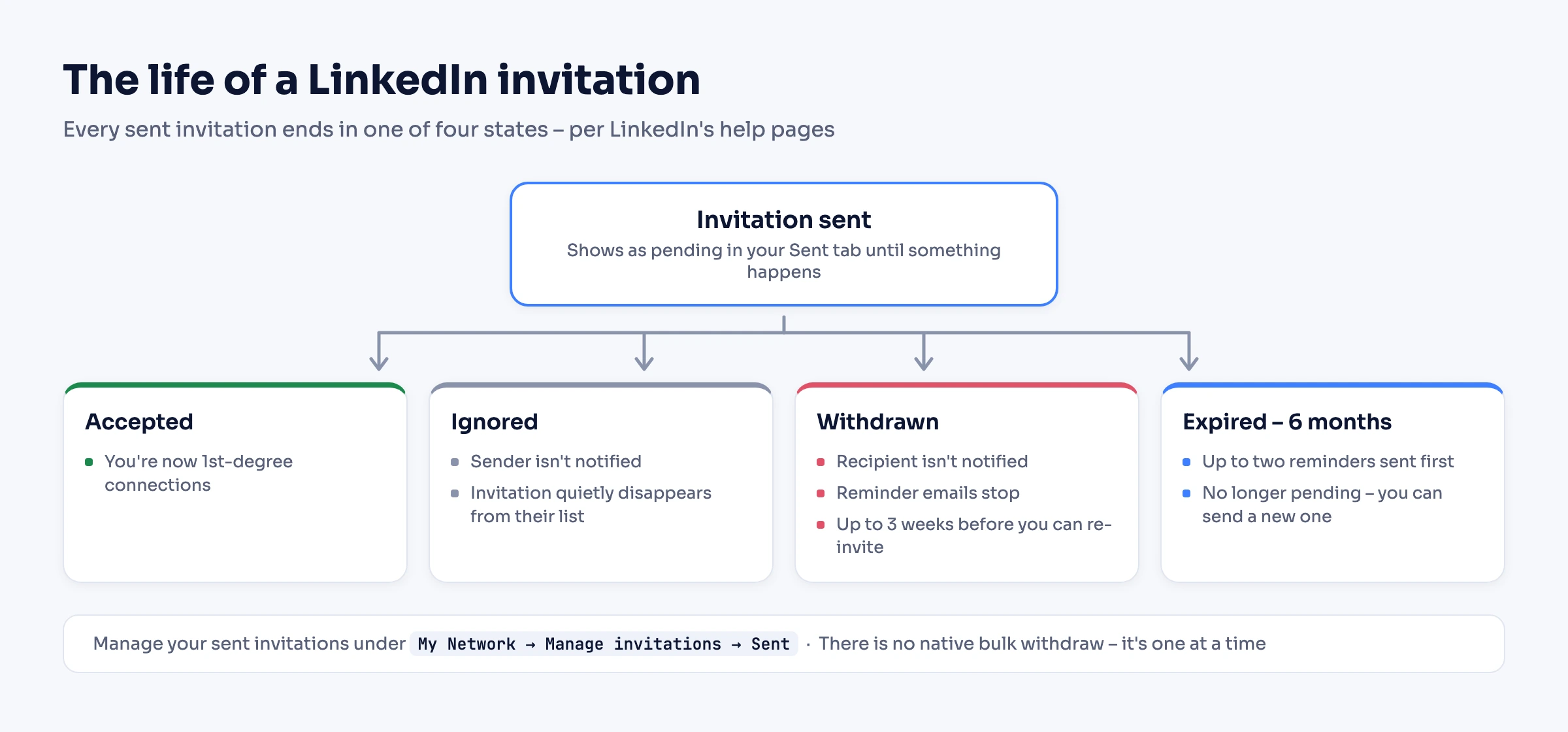
The short version. Your pending sent invitations live under My Network → Manage invitations → the Sent tab (on mobile: My Network → Invitations → Sent); received invitations are reached through the Notifications icon – and also from My Network. From Sent, click Withdraw and confirm – and per LinkedIn Help: the recipient is not notified, reminder emails stop, the withdrawal can't be undone, and you can't re-invite the same person for up to three weeks. Unanswered invitations expire after six months (LinkedIn sends up to two reminders first, and once expired you can send a new one), and there is no native bulk withdraw – it's one at a time.
What counts as a pending invitation on LinkedIn?
A pending invitation is any invitation that has not been acted on yet, and it exists on both sides: requests you sent that the other person has not accepted or ignored, and invitations you received and have not answered. Connection requests are the most common kind, but LinkedIn's invitation list also carries other categories – its filters cover People, Events, Pages, and Newsletters, so an invitation can also be someone inviting you to an event or to follow a page or newsletter.
One side-effect worth knowing, in its exact form: on profiles where Follow is the primary button, choosing Connect from the overflow menu means you automatically follow the person while your invitation is pending – and if they decline, you keep following them unless you manually unfollow.
How to see the connection requests you've sent
On desktop, per LinkedIn's withdraw help page:
- Click the My Network icon at the top of your LinkedIn homepage.
- In the Invitations section, click Show all – or, if nothing is pending on the received side, click Manage next to "No pending invitations".
- Click the Sent tab under Manage invitations.
On mobile: tap the My Network tab → Invitations → the Sent tab.
The Sent tab is the full list of everything still outstanding. The direct address most people end up bookmarking is linkedin.com/mynetwork/invitation-manager/sent/ – LinkedIn's help pages describe the menu route above, but the URL takes you straight there.
How to see invitations you've received
LinkedIn's current help page for received invitations routes through notifications: on desktop, click the Notifications icon at the top of your homepage; on iOS and Android, tap the Notifications tab in the navigation bar. Invitations also appear in the My Network section on every platform, so either entry works.
For each invitation you have two buttons, in LinkedIn's words: "Click Accept to add the person as one of your 1st-degree connections," or "Click Ignore to remove the invitation without accepting it." An invitation waiting here is why a profile can still show "2nd" while the right move is to accept rather than invite – see degrees of connection for how that state differs from the badge. Two details people always ask about:
- Ignoring is silent. Per the same help page: "The sender won't be notified that you've ignored their invitation, so they may try to connect with you again."
- "I don't know this person" – the option LinkedIn offers after you ignore – goes further: it prevents that member from sending you further invitations.
How to withdraw a LinkedIn invitation (and what happens next)
From the Sent tab (previous section), click Withdraw next to the invitation, then confirm in the pop-up. That is the whole mechanism – and LinkedIn's help page documents exactly what it triggers:
- The other person is not told. "The recipient will not be notified when you withdraw the invitation."
- Reminders stop. Withdrawing an invitation stops LinkedIn's reminder emails to the recipient.
- It's permanent. "Withdrawn invitations can't be restored."
- A cooldown starts. "You won't be able to send a new invitation to the same member for up to three weeks."
If you followed the person as part of inviting them (the Follow-primary case from the first section), check your follow state after withdrawing – following is managed separately from the invitation itself.
One edge case: if the Withdraw button is missing, the invitation was most likely already accepted – there is nothing to withdraw anymore, but you can still remove them as a connection.
Do LinkedIn invitations expire?
Yes. Per LinkedIn's connections and invitations FAQ: "Invitations expire after six months. Before they expire, LinkedIn sends up to two reminders to the recipient." So an ignored request does not sit in your Sent tab forever – LinkedIn retires it on its own schedule.
What happens after expiry is the part the FAQ answers directly: "Expired invitations no longer appear as pending, and you can send a new one." Note the asymmetry with withdrawal – the up-to-three-weeks block applies only to invitations you withdrew; an invitation that expired on its own can be re-sent right away.
Why stale pending invitations are worth cleaning up
A long Sent list is not just clutter – it is a signal LinkedIn reads. Its page on invitation restrictions lists, among the triggers: "Many of your invitations have been ignored, left pending, or marked as spam by the recipients." Accounts that trip these signals get temporarily blocked from sending invitations; the same page notes that having too many pending invitations out can mean waiting up to a month before sending another, and that most restrictions lift within a week. If that has already happened to you, our guide to a restricted LinkedIn account covers how an invitation restriction differs from the other documented types and what the route back is for each.
The practical habit: open the Sent tab monthly and withdraw anything older than three or four weeks. If someone has not accepted in a month, the request is functionally dead – withdrawing it keeps your outstanding queue small and your acceptance rate honest. As for how many pending invitations is "too many": LinkedIn does not publicly state a numeric pending-invitation maximum – how invitation restrictions and sending limits work in practice is covered in the connection limit guide.
When there are hundreds: managing invitations programmatically
Everything above is one invitation at a time – and LinkedIn's help page is explicit that this is the only native way: "You can't bulk withdraw invitations." If you prospect at real volume, the queue becomes a job for code rather than clicks. Linked API – a flexible LinkedIn automation API you can embed in your own product, backend, CRM, or workflow, running on your own account through a human-paced cloud browser – exposes the whole queue as composable primitives (its withdraw action also unfollows by default, with an opt-out):
| Job | API action | CLI |
|---|---|---|
| List pending sent requests | retrievePendingRequests | linkedin connection pending --json |
| Withdraw a stale request | withdrawConnectionRequest | linkedin connection withdraw <url> |
| List received invitations | retrieveInvitations | linkedin connection invitations --json |
| Accept or ignore by rule | acceptInvitation / ignoreInvitation | linkedin connection accept <type> <url> / linkedin connection ignore <type> <url> |
Hosted tools automate this queue too, at the layer of pre-built campaign agents; the primitives above are for wiring it into your own system. The full lifecycle with working code – sending, status checks, pruning stale invites on a schedule, handling incoming – lives in How to Automate LinkedIn Connection Requests and the working-with-invitations docs, and the same actions are available to AI agents through the MCP server, the AI-agent-friendly CLI, and ready-made skills.
Frequently Asked Questions (FAQ)
No. LinkedIn's help page states the recipient "will not be notified when you withdraw the invitation" – the request simply disappears from their list, and its reminder emails stop. Keep in mind the withdrawal itself is permanent, and you won't be able to re-invite that person for up to three weeks.
Until someone acts on them – or for six months, whichever comes first. Per LinkedIn's connections and invitations FAQ, invitations expire after six months, with up to two reminders sent to the recipient before that happens.
The usual reason is that it was already accepted – once someone accepts, there is no pending invitation left to withdraw, and your option becomes removing the connection instead. Already-withdrawn invitations also can't be touched again: LinkedIn states withdrawn invitations can't be restored.
Not natively – LinkedIn's help page says plainly, "You can't bulk withdraw invitations," so the built-in flow is one at a time from the Sent tab. At real volume, the programmatic route in this guide's last section does the same job through an API on your own account.
Nothing visible to you. You are not notified when someone ignores your request – the invitation quietly leaves their list. Ignoring is not a block: LinkedIn notes the sender "may try to connect with you again."
LinkedIn does not publicly state a numeric pending-invitation maximum. What it does document is the consequence: many invitations left ignored or pending is a listed trigger for invitation restrictions, and too many outstanding invitations can mean waiting up to a month before sending more. How invitation restrictions and sending limits work in practice is covered in the connection limit guide.
Keeping the queue clean on your own account, at any scale? Start with Linked API – flat per-seat pricing from $49/mo, billed annually – with every invitation primitive across the full surface set: the REST API and Node/Python SDKs, the shell CLI, the MCP server, the AI-agent-friendly CLI (Claude Code, Cursor, Codex), and ready-made agent skills (npx @linkedapi/skills) – on your own account and at a human pace.