
What 1st, 2nd and 3rd Mean on LinkedIn: Degrees of Connection Explained
LinkedIn marks most names with a small label – 1st, 2nd or 3rd – and it quietly decides what you are allowed to do next. Whether you can message someone, whether the Connect button appears, even how much of their profile you get to see, all follow from that one number. People Search adds a broader 3rd+ filter on top of those.
The short version. The number is your network distance. 1st means you are directly connected – LinkedIn lets you message them. 2nd means they are connected to one of your 1st-degree connections, and you can send an invitation with the Connect button. 3rd means they are connected to one of your 2nd-degrees. "LinkedIn Member (Out of Network)" covers people outside LinkedIn's listed network categories, whose profiles show you limited information and who you can reach with an InMail where that option is available. What the label does not distinguish is where you stand right now: the same non-1st badge appears whether neither side has an active invitation, your invitation is already waiting with them, or theirs is waiting with you – and those need three different actions.
What 1st, 2nd and 3rd mean on LinkedIn
| Label | What it is | Can you message them | Can you invite them | Profile visibility |
|---|---|---|---|---|
| 1st | Directly connected | Yes | Already connected | Full |
| 2nd | Connected to one of your 1st-degrees | Not directly | Yes, via Connect | Full |
| 3rd | Connected to one of your 2nd-degrees | Not directly | Usually, where Connect is offered | Full |
| 3rd+ | A People Search filter, not a relationship type | Not directly | Only where Connect is offered | Varies |
| LinkedIn Member (Out of Network) | Outside LinkedIn's listed network categories | InMail where available, or free if they have Open Profile | Rarely offered | Some fields limited |
What "1st" means on LinkedIn
A 1st-degree connection is mutual and it is always the result of an accepted invitation. Per LinkedIn's help page, these are "people you're directly connected to because you've accepted their invitation to connect, or they've accepted your invitation" – and you can "contact them by sending a message on LinkedIn."
Two consequences worth knowing:
- It is the only relationship LinkedIn creates in both directions at once. You appear in their network exactly as they appear in yours, and either side can end it.
- There is a ceiling. LinkedIn allows a "maximum of 30,000 1st-degree connections" per account. Followers, which are one-way, are not counted against it.
Your 1st-degree connections are also the part of your network you can export – see how to export your LinkedIn connections, manually or via API.
What "2nd" means on LinkedIn
A 2nd-degree connection is, in LinkedIn's words, one of the "people who are connected to your 1st-degree connections" – and you "can send them an invitation by clicking the Connect button on their profile page."
The useful part is the path rather than the definition. Because a 2nd-degree relationship exists only through someone you already know, LinkedIn shows you the shared connection on their profile. That gives you two options a cold approach does not have: mention the mutual contact in your invitation note, or ask that contact to introduce you. It is the difference between arriving as a stranger and arriving as a colleague of someone they trust.
What "3rd", "3rd+" and "LinkedIn Member (Out of Network)" mean
These three are not three rungs on one ladder, and treating them that way is where most explanations go wrong. 3rd-degree is a relationship. 3rd+ is a search filter. Out of Network is LinkedIn's label for members outside its listed network categories.
3rd-degree members are, per LinkedIn Help, the "people who are connected to your 2nd-degree connections" – a friend of a friend of a friend. In practice the Connect button is usually still there.
3rd+ is not a separate kind of relationship, and LinkedIn does not document it as a profile label. Where it is defined is the Connections filter in People Search, and the definition is broad: filtering by 3rd+ "will include everyone that falls in your search criteria." Treat it as a search bucket rather than a degree.
LinkedIn Member (Out of Network) is the label for people "who fall outside the categories listed above." Two things change here. First, visibility: LinkedIn notes that "some fields of profiles out of your network have limited visibility," which is why you sometimes see an abbreviated name instead of a full one. Second, the route: LinkedIn names InMail as the way to "introduce yourself" to these members, where that option is available to you.
Followers are not a degree. Following is one-way: someone who follows you "chooses to follow your public updates" without any connection existing. It creates no degree, changes nothing about who can message whom, and does not count toward the 30,000 cap.
The badge shows distance, not state
Here is what none of this tells you: where you actually stand with that person right now.
The badge answers a question about the network graph – how many steps away they are. It does not distinguish what has already happened between you. A profile showing "2nd" looks the same in three situations that call for three different actions:
- Neither side has an active invitation. The invitation still has to be sent.
- Your invitation is already sitting with them, unanswered. Sending another does nothing; your real options are to wait or to withdraw it.
- Their invitation is already sitting with you. The right move is to accept it – and if you send your own request instead, you are doing extra work to reach a state you could have had with one click.
LinkedIn does surface the difference elsewhere: the profile's own buttons change, and both invitation queues live under My Network. What stays identical across all three is the badge itself. That is a small annoyance when you are looking at one profile and can check your queues by hand, and a real problem the moment anything runs across a list, because the correct action differs in each case and the label you are reading does not.
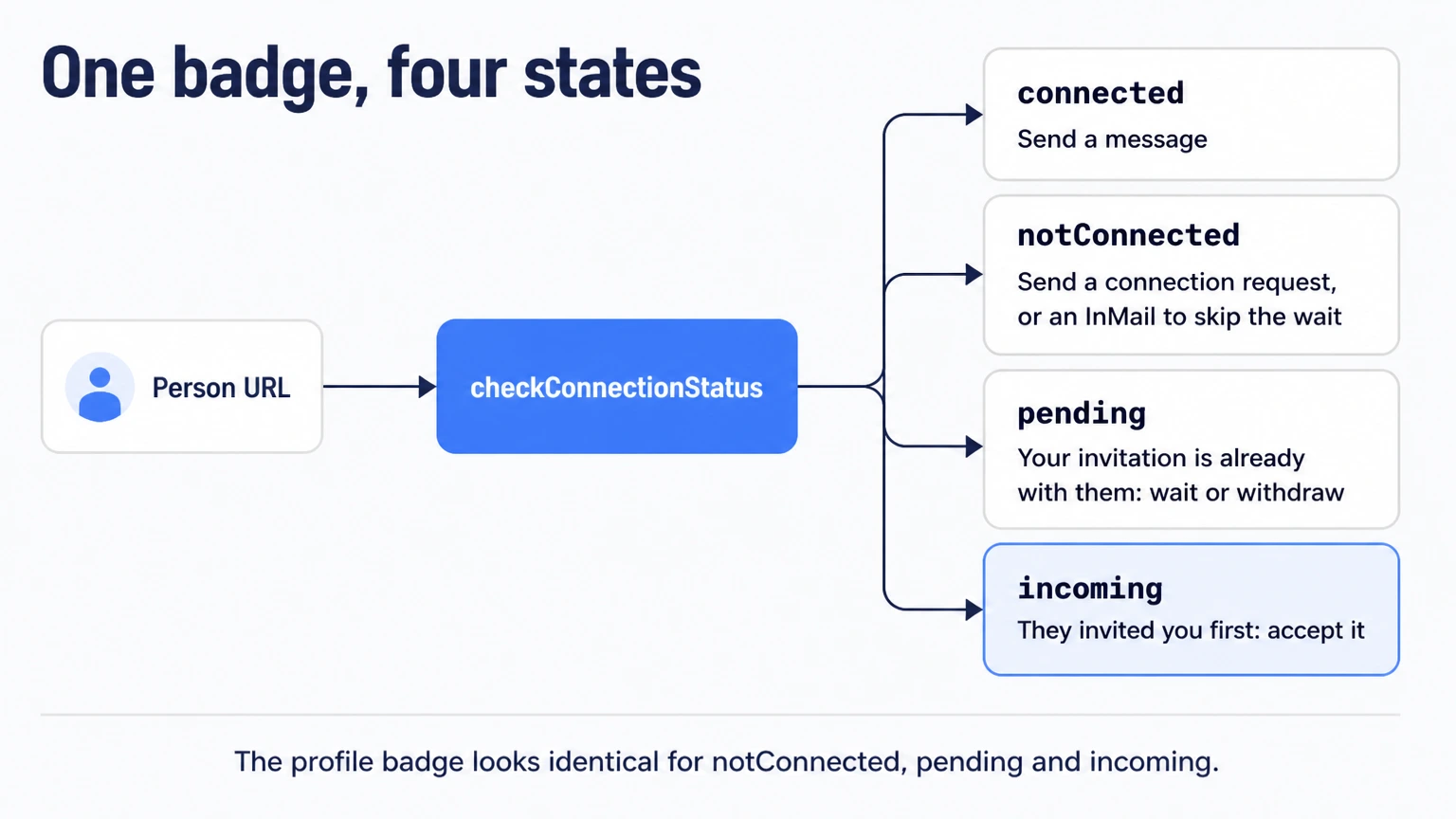
This is why an API answers a different question than the badge does. Instead of a degree, Linked API's checkConnectionStatus returns the relationship state, and there are four of them: connected, notConnected, pending and incoming. Note what notConnected does and does not mean: no connection and no active invitation in either direction right now – not a guarantee that you have never been in touch before. And incoming is the state that is easy to miss if you look only at the badge: it means the other person invited you first.
The product is built to expect this. If you skip the check and send a connection request to someone whose invitation is already waiting, Linked API does not quietly send a duplicate – it returns the error invitationAlreadyReceived, whose message is exactly the advice you needed: "This person has already sent you a connection request. Accept it instead of sending a new one." Useful, but it costs you a failed action and an error to handle, when one status check would have routed you to the right branch in the first place.
Checking connection state in code
The whole pattern is one call and four branches. Install the SDK with npm install -S @linkedapi/node or pip install linkedapi, then:
import LinkedApi from '@linkedapi/node';

const linkedapi = new LinkedApi({
  linkedApiToken: process.env.LINKED_API_TOKEN,
  identificationToken: process.env.IDENTIFICATION_TOKEN,
});

const NOTE = 'Hi! We share a few contacts in this space - would love to connect.';

async function reach(personUrl: string, text: string): Promise<void> {
  const check = await linkedapi.checkConnectionStatus.execute({ personUrl });
  const { data } = await linkedapi.checkConnectionStatus.result(check.workflowId);

  switch (data?.connectionStatus) {
    case 'connected':
      await linkedapi.sendMessage.execute({ personUrl, text });
      return;

    case 'incoming':
      // They invited you first - accept, do not send your own request.
      await linkedapi.acceptInvitation.execute({ invitationType: 'connect', personUrl });
      return;

    case 'pending':
      // Your invitation is already with them: wait, or withdrawConnectionRequest.
      return;

    case 'notConnected':
      await linkedapi.sendConnectionRequest.execute({ personUrl, note: NOTE });
      return;
  }
}Note that acceptInvitation takes the invitation type alongside the URL – invitationType: 'connect' with a personUrl – because the same action also accepts company-follow and newsletter invitations.
What happens after the request is sent – the emailRequired edge, withdrawing invitations that went stale, detecting the moment one is accepted – is its own lifecycle, covered in How to Automate LinkedIn Connection Requests. Once someone is connected, automating the message is the next step.
How to reach someone at each degree
| Route | Who it reaches | Best for | Cost |
|---|---|---|---|
| Message | 1st-degree | Anyone already connected | Free |
| Connection request (± note) | 2nd; 3rd where Connect is offered | Building an ongoing relationship rather than a one-off contact | Free; weekly invitation limits apply |
| Sales Navigator InMail | 2nd, 3rd, out of network | Reaching someone without waiting for an invitation to be accepted | One credit; refunded if they accept, decline or reply within 90 days |
| Open Profile message | Premium members who enabled Open Profile | Contacting a non-connection without using a credit | Free, including from free accounts |
| Follow | Anyone who allows followers | Seeing someone's posts without a connection | Free; creates no degree |
| Shared-connection introduction | 2nd | Warm outreach at low volume | Free; manual |
| Programmatically, on your own account | The same eligible people reached by the supported routes: 1st-degree messages, Connect where it is offered, and Sales Navigator InMail. It unlocks nobody new | Running those routes across a list, or wiring them into your own product, CRM or agent | Paid, flat per seat; LinkedIn's own limits and credits still apply |
Where a 3rd-degree profile offers no Connect button, InMail is the paid fallback – but check the free routes first: a Premium member with Open Profile can be messaged at no cost, and a shared group can open a direct route too. How InMail credits, caps and refunds work is covered in the LinkedIn InMail guide, including that Open Profile exception.
That last row is worth one caveat. Doing this programmatically does not move anyone closer to you: degrees still apply, invitation limits still apply, InMail still costs a credit. What changes is that the routing happens in your code instead of your afternoon. Linked API runs each action on your own account through a human-paced cloud browser and surfaces LinkedIn's own limit signals rather than pushing past them, which is what keeps volume sane – our connection limit guide and limits overview have the numbers, and the safety model has the approach. You can build it in with the REST API, the Node and Python SDKs or the shell CLI, or get it out of the box through the MCP server, the AI-agent-friendly CLI in Claude Code, Cursor and Codex, or a ready-made skill.
Frequently Asked Questions (FAQ)
Yes. An invitation nobody answers expires after six months, and LinkedIn sends up to two reminders before that happens. Once it has expired you are free to send a new one. Withdrawing an invitation yourself is different: the recipient is not notified, but you cannot re-invite the same person for up to three weeks. Our guide to pending invitations covers both queues and how to clear them.
Building connection logic into your own product, CRM or agent? Start with Linked API – check the real relationship state and act on it through the API and SDKs, the CLI, the MCP server or ready-made skills, on your own account and at a human pace.