
LinkedIn Boolean Search: Operators, Examples, and How to Run Searches at Scale (2026)
LinkedIn boolean search combines keywords with a handful of operators – quotation marks for exact phrases, and AND, OR, and NOT (typed in uppercase) plus parentheses for grouping – to build precise searches for people and companies. It works in the standard search bar, in LinkedIn Recruiter, and in Sales Navigator, though each puts boolean in slightly different fields. This guide covers the operators with copy-paste examples, the differences between the three surfaces, the mistakes and limits that trip people up, and the part most boolean guides skip: how to run the same search programmatically at scale.
The short version. Five operators do the work:
"exact phrase", and AND / OR / NOT in uppercase plus parentheses to group. They go inside the field you're searching – the standard search box, or the Keywords/Title/Company fields in Recruiter and Sales Navigator – not astitle:-style commands (those don't work). To run a search at scale, you build it in LinkedIn's interface, copy the results URL, and hand that URL to a search API. It runs the search you built – it is not a raw boolean engine, and it returns profile data, not emails.
The LinkedIn boolean operators
There are five, and they are the same across LinkedIn's search surfaces. (Reference: LinkedIn's own Use Boolean search on LinkedIn.)
| Operator | What it does | Example | Rule |
|---|---|---|---|
| Quotation marks | Matches an exact phrase | "product manager" | LinkedIn ignores common words (and, or, the, by, in, with); quote a phrase to force them in |
| AND | Requires all terms (narrows) | finance AND CPA | Type it in UPPERCASE |
| OR | Matches any term (broadens) | sales OR marketing | Type it in UPPERCASE |
| NOT | Excludes a term (narrows) | developer NOT manager | UPPERCASE, immediately before the term |
| Parentheses | Groups logic, evaluated first | VP NOT (assistant OR SVP) | The only grouping symbol LinkedIn recognizes |
Two rules save most of the headaches. First, AND, OR, and NOT must be uppercase – written in lowercase, LinkedIn reads them as ordinary keywords. Second, when you mix operators, LinkedIn evaluates them in a fixed order: quotes, then parentheses, then NOT, then AND, then OR. When in doubt, add parentheses to make your intent explicit.
LinkedIn does not support wildcards (*), curly, square, or angle brackets, or the +/- operators – use AND and NOT instead.
Where boolean search works: standard search, Recruiter, and Sales Navigator
Boolean behaves the same, but where you type it differs by product.
| Surface | Where boolean goes | Structured filters |
|---|---|---|
| Standard search | The single search box at the top | Minimal; most advanced filters are gated behind Premium |
| Recruiter / Recruiter Lite | The Keywords field, plus filter fields like Job titles, Location, Companies, Schools, Skills, Industries, and Spoken languages | 20+ filters |
| Sales Navigator | The Keywords, Title, and Company fields | 30+ Lead and Account filters |
One correction, because a lot of older guides get it wrong: colon field-commands like title:, company:, or school: are not documented by LinkedIn and do not work in standard search. Boolean today goes inside the named field you want to search – the Keywords box, or the dedicated Title, Company, and School fields in Recruiter and Sales Navigator – not as a field:value prefix. LinkedIn's Sales Navigator help confirms boolean in its Company, Title, and Keyword fields (that page is a few years old, so treat the finer field details as a guide rather than gospel).
The practical takeaway: in the standard search bar you lean on boolean; in Recruiter and Sales Navigator you keep the boolean simple and let the structured filters do the heavy lifting.
Boolean search examples you can copy
Here are six strings that follow the rules above. Adapt the roles to your target; keep the syntax.
- Backend engineers, excluding recruiters (tech recruiting):
- Sales VPs at software companies, minus junior roles (SaaS prospecting):
- Individual-contributor developers only (IC sourcing):
- Advanced-degree data/ML people who use Python or R (DS/ML recruiting):
- Marketing leaders in fintech, excluding freelancers (exec prospecting):
- ICU nurses, excluding students and retirees (healthcare recruiting):
Notice the pattern: quotes lock multi-word titles together, parentheses hold a group of synonyms joined by OR, and NOT trims out the roles you never want to see.
Common boolean mistakes (and LinkedIn's limits)
- Lowercase operators.
java and pythonsearches for the word "and." Capitalize AND, OR, NOT. - Forgetting quotes on phrases.
product managercan match "product" and "manager" separately, and LinkedIn drops the stop words in between;"product manager"keeps it exact. - Expecting field-commands to work.
title:CMOdoes nothing useful in standard search. Put the term in the Keywords box, or use the Title field in Recruiter or Sales Navigator. Colon commands likeintitle:andinurl:belong to Google, not LinkedIn – searching LinkedIn profiles through Google is a separate technique, covered in the X-ray search guide. - Hitting the Commercial Use Limit. On a free account, LinkedIn caps how much you can search each month once your activity looks like hiring or prospecting. Per LinkedIn's help page, it does not display the exact number of searches you have left, and the limit resets at the start of each calendar month. Recruiter and Sales Navigator raise or remove that ceiling.
- Expecting boolean in every filter. Boolean only works in the fields that accept free text (Keywords, Title, Company). The dropdown and checkbox filters use their own logic.
From boolean to scale: run your search via API
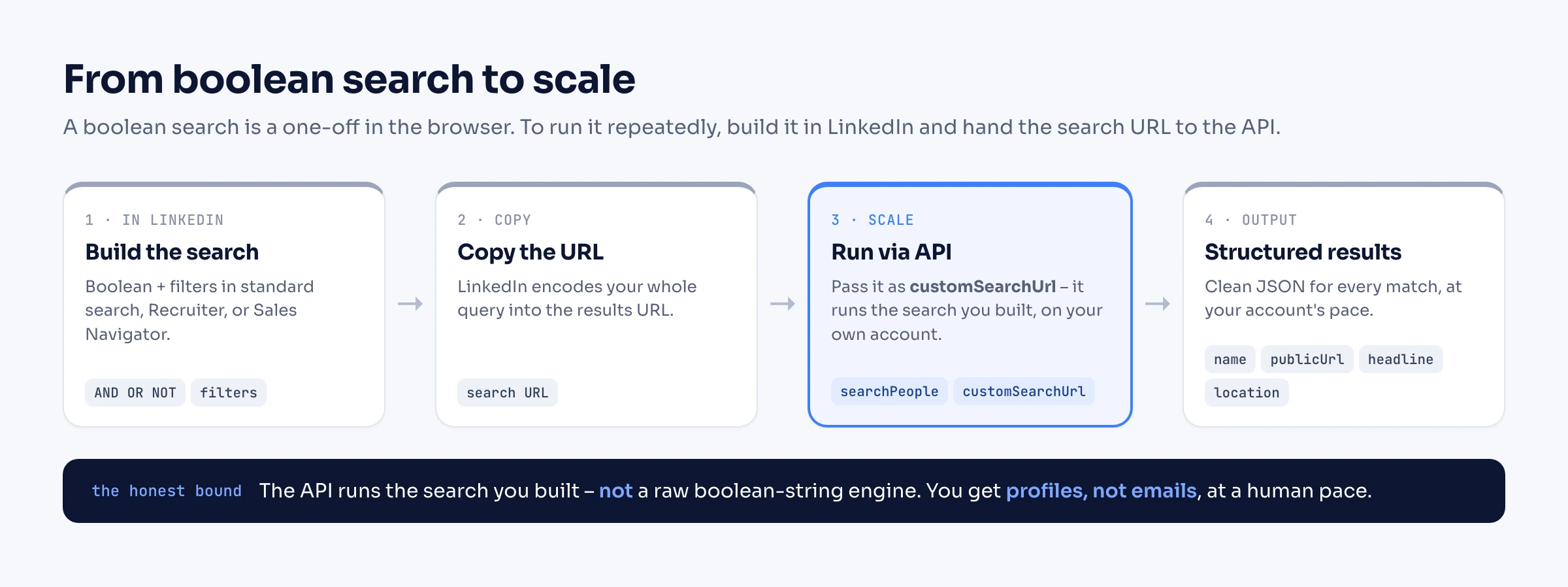
A boolean search is a one-off in the browser. When you want to run it repeatedly, feed the results into a workflow, or search on behalf of a product, you move it to an API – and the clean way to do that is to build the search in LinkedIn, then hand over its URL. LinkedIn encodes your whole query (keywords, boolean, and filters) into the search results URL; Linked API takes that URL as customSearchUrl and runs the same search on your own authenticated account.
import LinkedApi from '@linkedapi/node';

const linkedapi = new LinkedApi({
  linkedApiToken: process.env.LINKED_API_TOKEN,
  identificationToken: process.env.IDENTIFICATION_TOKEN,
});

// Build the boolean search in LinkedIn, copy the results URL, and run it at scale.
// customSearchUrl runs exactly that search (it overrides term and filter).
const search = await linkedapi.searchPeople.execute({
  customSearchUrl:
    'https://www.linkedin.com/search/results/people/?keywords=%22software%20engineer%22%20AND%20(Java%20OR%20Kotlin)',
  limit: 25,
});

const { data: people } = await linkedapi.searchPeople.result(search.workflowId);
for (const person of people ?? []) {
  console.log(person.name, person.headline, person.publicUrl);
}If you would rather describe the search in code than build it in the UI, use structured filters instead. One rule to know: a request needs either a term or a customSearchUrl – a filter-only call is rejected – so pass a keyword term alongside your filter:
const search = await linkedapi.searchPeople.execute({
  term: 'engineer',
  filter: {
    position: 'Software Engineer',
    locations: ['United States'],
    industries: ['Software Development'],
  },
  limit: 25,
});The people search and company search endpoints work the same way, and the Sales Navigator variants (nvSearchPeople, nvSearchCompanies) add filters like years of experience and company revenue. Two honest limits: term is plain keyword text, not a boolean parser – for real boolean, use customSearchUrl; and results come back at your account's safe pace with profile URL, name, headline, and location, not emails. From a returned profile you can go deeper with the profile scraper or turn matches into outreach, always within your account's limits.
Frequently Asked Questions (FAQ)
It is a way to combine keywords with operators – quotation marks for exact phrases, and AND, OR, NOT, and parentheses – to build a precise search for people or companies instead of a single loose keyword.
Quotation marks for exact phrases, and AND, OR, and NOT (typed in uppercase) plus parentheses for grouping. LinkedIn does not support wildcards (*), brackets of any kind, or the +/- operators.
No. LinkedIn does not document colon field-commands, and they do not work in standard search. Type your boolean inside the named field instead – the Keywords box in standard search, or the dedicated Title, Company, and School fields in Recruiter and Sales Navigator. Commands like intitle: work in Google, where they are used for X-ray search against public profiles.
Free accounts hit a monthly Commercial Use Limit once your searching looks like hiring or prospecting. LinkedIn does not state the exact number and it resets at the start of each calendar month. Recruiter and Sales Navigator raise or remove that limit.
Yes. Build the search in LinkedIn's interface and pass its results URL to a search API – Linked API's searchPeople and searchCompanies accept it as customSearchUrl – or describe the search with structured filters plus a keyword term. It runs the search you built on your own account and returns profile data, not emails, and it is not a raw boolean-string engine.
In the standard search bar, yes, subject to the monthly commercial use limit. Recruiter and Sales Navigator add more boolean-capable fields and structured filters on their paid plans.
Built the perfect boolean search and want to run it every day, at scale, from your own account? Start with Linked API – paste your LinkedIn search URL, get clean JSON for every match, and wire it into your stack through the API and SDKs, CLI, MCP, and skills.