
LinkedIn AI Agent: How to Give Your Agent Access to Your Account
A LinkedIn AI agent is one that does things in your account rather than writing text for you to paste: it runs the search, opens the profiles, sends the connection request, replies in the thread. Getting one working turns out to be less about the agent than about what sits between it and LinkedIn, because that connector decides both what your agent can do and what it holds of yours.
The short version. An AI agent needs an authorized way to act on LinkedIn – typically a scoped access token or an authenticated account session. Compare connectors on three things: what authentication material they receive and retain, where the actions execute, and which actions and limits they expose. Those answers shape your exposure, your control and your capability.
What is a LinkedIn AI agent?
Two different things share the name, and mixing them up is why setup advice often does not match what you wanted.
| What it does | Where it runs | The ask that fits | |
|---|---|---|---|
| Writing assistant | Drafts posts, comments and replies for you to publish yourself | In the chat window | "Write me a post about our launch" |
| Acting agent | Runs actions in your account – search, read, connect, message | Through a connector holding an authorized session | "Find heads of sales in Berlin and connect with the ones who fit" |
This guide covers the second kind. If all you want is better copy, a writing assistant is the cheaper answer and none of the setup below applies.
How can an agent reach your account?
An agent has no standing on LinkedIn by itself. Something has to carry authorization on your behalf, and the options differ on two axes: what authentication material that connector receives and retains, and where the actions actually execute.
These are the common models, not an exhaustive taxonomy:
| Model | Authentication material held | Where actions execute | What that means for you |
|---|---|---|---|
| Credential-based | Your LinkedIn password, used to obtain session cookies | Vendor side, varies by implementation | The connector holds your credentials |
| Cookie-based | Your li_at session cookie | Vendor side, varies by implementation | The cookie expires, so you reconnect on a cycle |
| Official tokens | An OAuth token, scoped to what LinkedIn grants | LinkedIn's public API | A narrow, well-defined surface – see LinkedIn API access |
| Local browser extension | Your own logged-in browser session | Your machine, your browser | Requires your browser and device to stay available; controls and pacing vary by implementation |
| Wire-level client | Session material, held vendor side | Reverse-engineered calls to private endpoints | Traffic that is not a browser session |
| Hosted browser session | An authorized session inside a browser bound to your account | That hosted browser | You connect the account once and the session persists |
Two things are worth being precise about. First, every logged-in browser necessarily contains session state, so the useful question is never "cookies or no cookies" – it is who receives and retains what. Second, the third comparison dimension from the summary above, which actions and limits a connector exposes, is not in this table on purpose: it is answered by the next two sections.
Linked API is one implementation of the last row. You sign in once through LinkedIn's own flow, the account gets its own dedicated cloud browser, and every action afterwards happens on LinkedIn's real pages at a human pace. Linked API never stores your password.
What can an AI agent actually do on LinkedIn?
The ceiling is set by the actions your connector exposes, not by how clever the model is. These are the operations available to an agent through Linked API, grouped by what the agent is trying to accomplish:
| Group | Operations | Typical agent task |
|---|---|---|
| Find | search_people, search_companies, search_jobs | "Find product managers at fintech companies in Amsterdam" |
| Read | fetch_person, fetch_company, fetch_post, fetch_job, retrieve_connections, retrieve_feed, retrieve_ssi, retrieve_performance | "Pull their experience and skills, and tell me who moved roles recently" |
| Act | send_connection_request, withdraw_connection_request, accept_invitation, send_message, react_to_post, comment_on_post, reply_to_comment | "Connect with the ones who fit, with a note referencing their last post" |
| Monitor | sync_inbox and get_inbox, sync_network and get_network, check_connection_status, retrieve_pending_requests | "Tell me who accepted and who replied since yesterday" |
Each of these has a guide of its own with the depth this page skips: profile data, company data, messaging, connection requests, posting, pending invitations and your SSI. The full list, including the Sales Navigator operations, is in available tools.
Sales Navigator has its own parallel set of operations, prefixed nv_. Those need a Sales Navigator seat on the account; everything in the table above does not.
How do you connect an agent and run a first action?
The sequence is the same whichever surface you pick, and the order matters – limits before the first run, reads before writes.
1. Connect the account once. Sign in through the platform, which opens the account's dedicated cloud browser. This is the only step that touches LinkedIn credentials, and it happens on LinkedIn's own pages.
2. Choose a surface. Two working modes – run it out of the box, or build it in – across four surfaces, all first-class. Pick by how you want to work, not by how much you want to build:
| Surface | How you start | Best for | What to know |
|---|---|---|---|
| Ready-made skills | npx @linkedapi/skills add linkedin, or add linkedin-growth for hands-off network growth | You want the outcome, not the wiring – install and ask | Two published skills; needs Node.js 20+, the CLI and your tokens, and the installer checks for them |
| MCP server | Installation | Claude, Claude Code, ChatGPT, Codex, Cursor, VS Code, Windsurf | Your agent has to speak MCP |
| Shell CLI | npm install -g @linkedapi/linkedin-cli, then linkedin setup | Agents that run shell commands, plus your own scripts and CI | Shell-shaped output rather than a typed client |
| REST API and SDKs | Node and Python SDKs | Embedding the actions inside your own product or backend | You build and maintain the orchestration |
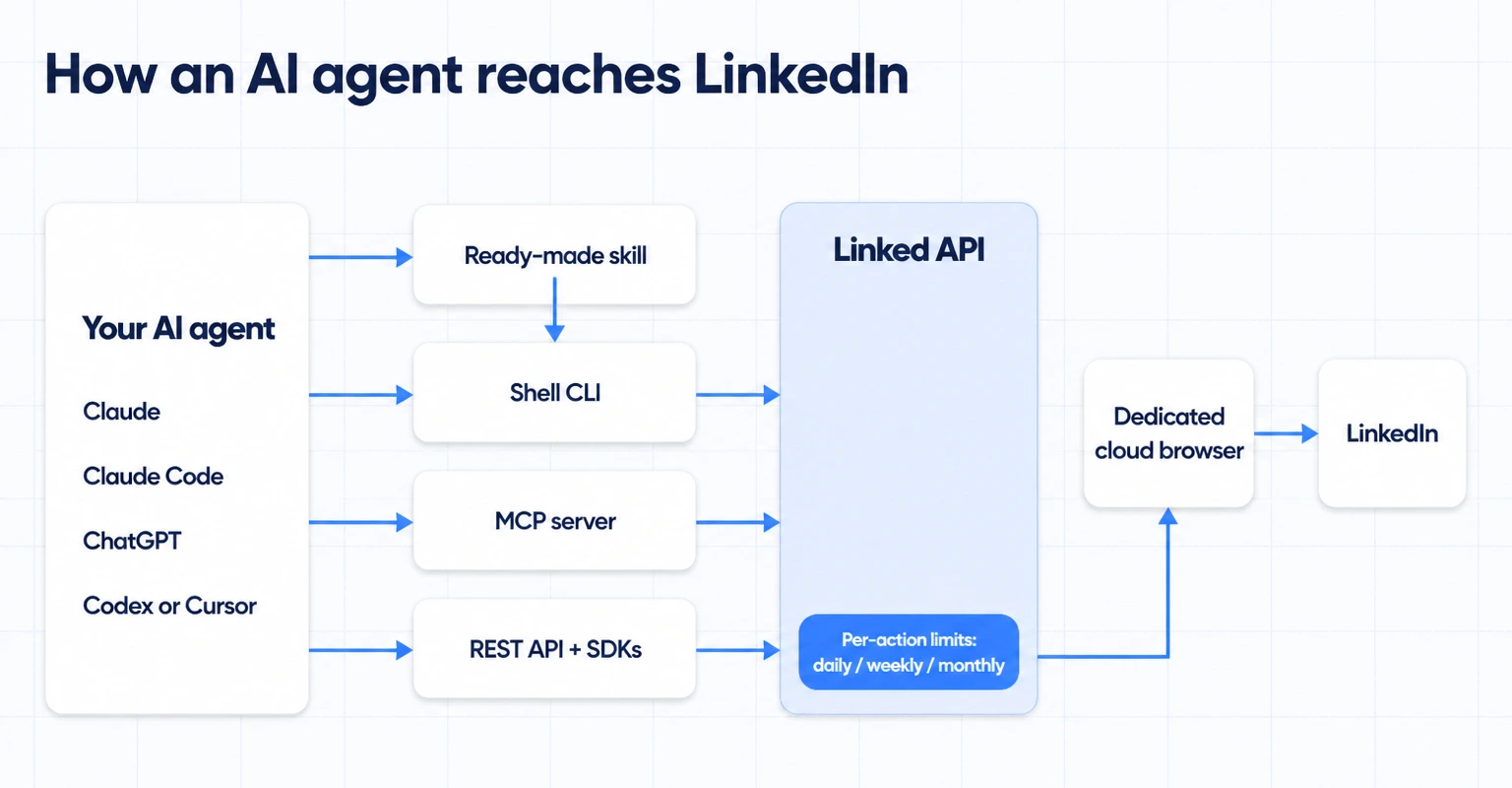
3. Set your tokens and your limits before the first run. The surface needs your Linked API token and identification token. This is also the moment to configure per-action limits, covered in the next section. Set your own caps before the first run; otherwise that run uses the system defaults rather than your custom limits.
4. Test with a read. Ask the agent for something that changes nothing: fetch a profile, run a search, pull your connections. You are checking that the account is connected, the output is what you expected, and the agent is calling the operation you thought it would.
5. Then approve a write. Only once reads behave, let it send a connection request or a message – and read the copy it drafted before it goes out.
What limits can you put on what the agent does?
An agent will do exactly as much as you let it, which is a problem when the instruction was vague. Two distinct things help here, and they are worth keeping apart, because only the first is enforced by the platform.
Enforced by the platform. You configure per-action limits on the account by category and period – 12 categories, including connection requests, messages, searches, reactions, comments, posts, profile views and skill endorsements, each settable for a daily, weekly or monthly window. An action that would cross a cap returns a limitExceeded error instead of executing. An enforced ceiling makes the agent's maximum activity predictable by action category and period. The Limits API covers reading defaults, setting your own and resetting them.
Worth stating plainly: limits govern the volume and pace you configured. They are a control you set, not a guarantee about anything else.
Your own operating practices. These are not platform behaviour, they are how you work: read before you write on a new setup, review outbound copy before it sends while you are still learning what the agent drafts, and start below the volume you eventually want. For LinkedIn's own position on automation and account restrictions, see our guide to a restricted LinkedIn account; the working numbers live in understanding LinkedIn limits.
When an agent is the wrong route
An agent driving a session is interactive and non-deterministic. That is the point when you are exploring, and a drawback when you are not:
- You need the same job to run identically every night. Scheduled, repeatable, auditable work belongs in your own code, calling the same operations through the REST API or the SDKs. You give up the plain-language interface and get determinism and logs in exchange.
- Your volume exceeds what an account can do. Everything here runs through one LinkedIn account at a human pace, whichever surface you choose – the API is not a faster lane. Work that needs to move faster than an account can act does not fit this model at all.
- You only want better copy. A writing assistant drafts your posts and comments without any of this setup.
Frequently Asked Questions (FAQ)
An AI agent that performs actions in a LinkedIn account rather than only generating text – searching for people, reading profiles, sending connection requests and messages, reacting and commenting. It reaches the account through a connector that holds an authorized session or token, and what that connector exposes sets what the agent can do.
Not on their own. A model has no standing on LinkedIn until you connect it to something that carries authorization on your behalf. In practice that means adding a connector – an MCP server, a command-line tool the agent can run, or an API your own code calls – and pointing your agent at it.
That depends entirely on the connector, and it is worth checking before you pick one. Some models take your password or your session cookie; token-based routes take neither. With Linked API you sign in once through LinkedIn's own flow to authorize a dedicated cloud browser for the account, and your password is never stored.
Two separate paths. Any MCP client connects through the MCP server – Claude, Claude Code, ChatGPT, Codex, Cursor, VS Code and Windsurf among them. Separately, any agent that can run shell commands works through the CLI, which is how Claude Code, Cursor and Codex are typically driven, and which also suits scripts and CI.
It cannot exceed what the connector exposes or what the account itself can do. It has no access to data LinkedIn does not show that account, it cannot outpace a human-paced session, and it does not return personal email addresses or phone numbers. Sales Navigator operations additionally require a Sales Navigator seat.
You decide, per action category and per day, week or month, and the platform holds that ceiling. There is no published universal number that applies to every account, so treat the cap you configure as your control rather than looking for an official figure. The limits guide collects the working numbers.
Linked API is flat per seat, from $49 per month billed annually, with no per-lead or per-credit metering – the agent calling an operation a hundred times costs the same as calling it once. See pricing for the current plans.
Give your agent an account it can actually use
Pick the route that matches how you work. Install a ready-made skill and ask in plain language, connect the MCP server to your assistant, drive the CLI from Claude Code, Cursor or Codex, or build it into your own product with the REST API and SDKs. Every route runs on the same dedicated cloud browser, on an account you own, inside the limits you set.